
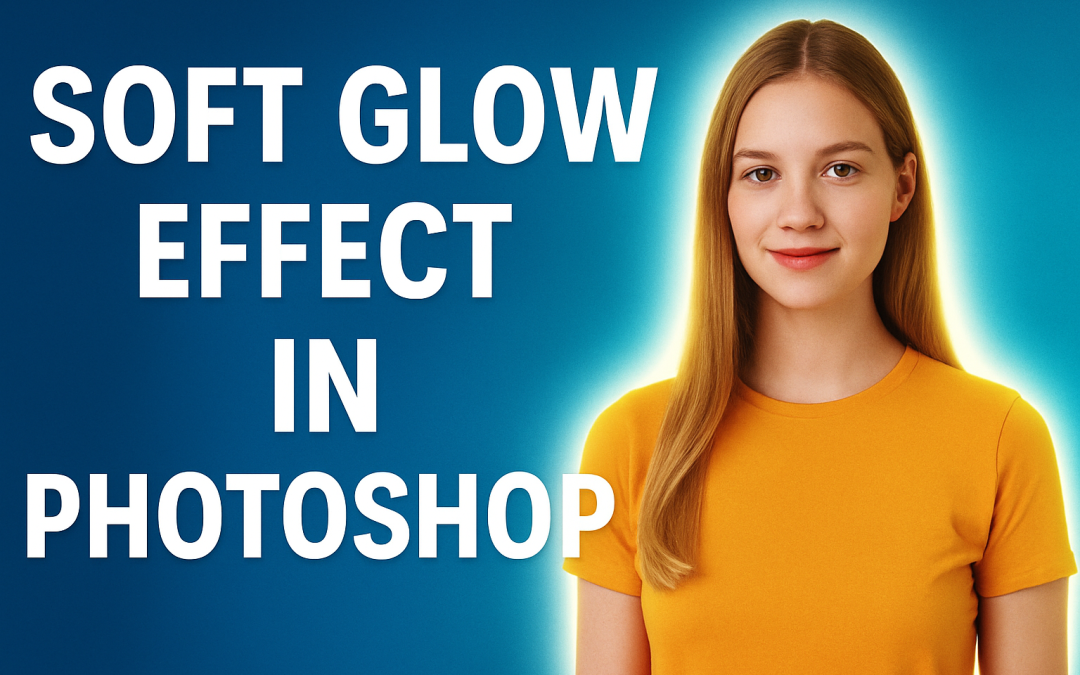
🎨 Photoshop Quick Tip #5: Soft Glow Effect Around an Object
Want your subject to pop with a soft glowing light? This effect adds mood and magic to thumbnails, portraits, and posters. Let’s do it in under a minute!
🧠 Steps to Create a Soft Glow Effect:
- Select your object using any selection tool (Object Selection or Pen Tool).
- Press Ctrl+J (Cmd+J) to duplicate the selection to a new layer.
- With the duplicated layer selected, go to Filter > Blur > Gaussian Blur.
- Set the blur radius between 20–40 px, depending on image size.
- Change the Blending Mode to Screen or Overlay.
- Adjust Opacity for a subtle glow.
✅ Done! You now have a glowing object that looks dreamy and highlighted.
💡 Pro Tips:
- Use colored glow by applying a color overlay to the glow layer.
- Combine with outer glow from Blending Options for a double-light effect.
📣 Want to learn pro-level lighting and effects in Photoshop?
Join our hands-on Photoshop Training Course at Akshar Graphics and Technology — Beginner to Advanced!