
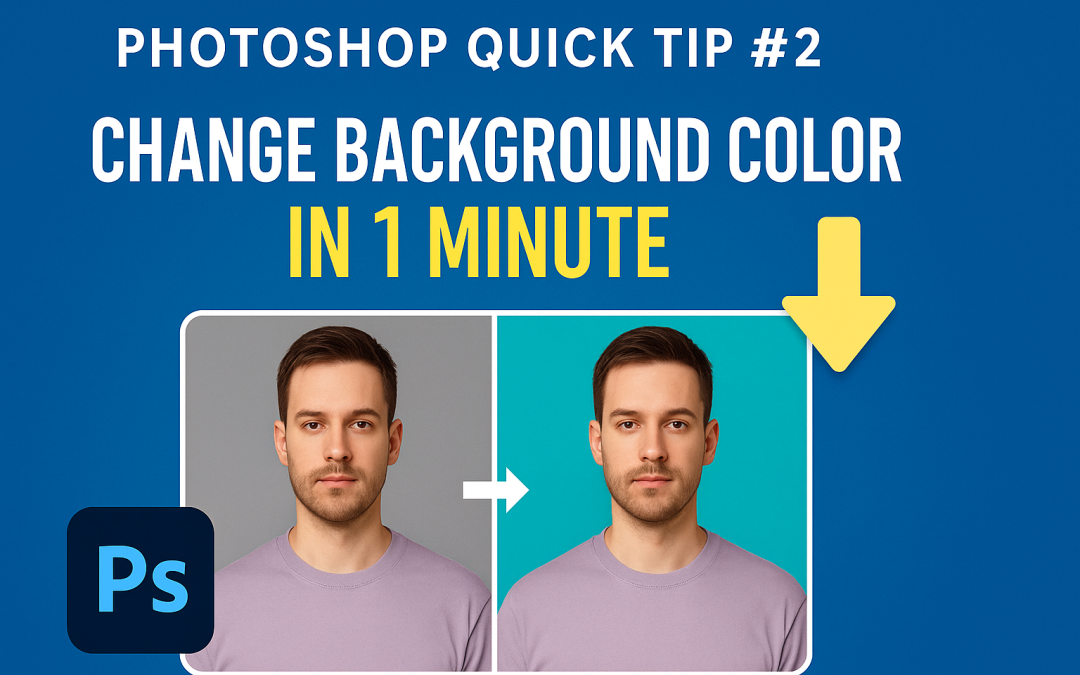
🎨 Photoshop Quick Tip #2: Change Background Color in 1 Minute
Want to make your product pop or give your portrait a fresh look? Changing the background color in Photoshop is easier than you think — and it takes less than a minute!
🪄 Steps to Change Background Color:
-
Open your image in Photoshop.
-
Use the Object Selection Tool (W) or Quick Selection Tool to select the subject.
-
Go to Select > Inverse (this selects the background instead).
-
Press Shift + Delete or Right-click > Fill
-
Choose Color… and pick your desired background color.
-
Hit OK. Done!
✅ Pro Tips:
-
Use Refine Edge for hair or complex shapes.
-
Add a solid color layer below the subject for more flexibility.
-
Try white, pastel, or gradient backgrounds for a modern look.
📣 Want to master more Photoshop skills fast?
Join our practical Photoshop Training Program at Akshar Graphics and Technology – Designed for students, professionals & business owners!