
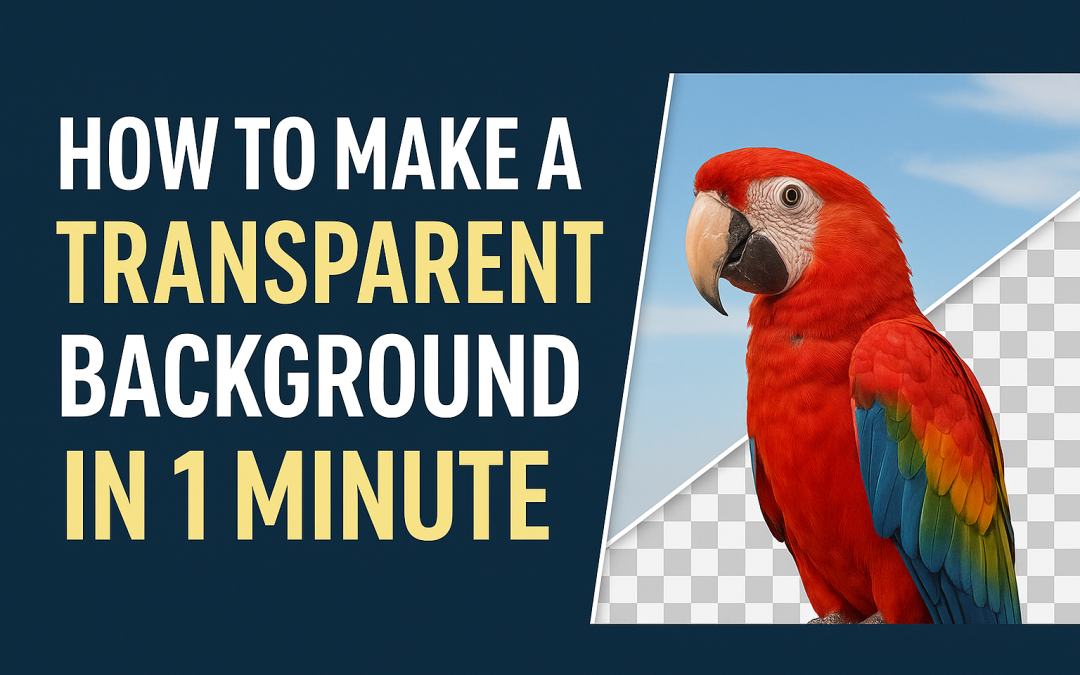
🎨 Photoshop Quick Tip #4: How to Make a Transparent Background in 1 Minute
Want to export your logo or object without any background? Here’s a fast way to remove the background and save it as a transparent PNG.
🧠 Steps to Make a Transparent Background:
- Open your image in Photoshop.
- Select the subject using the Object Selection Tool (W) or Quick Selection Tool.
- Click Select > Inverse, then press Delete to remove the background.
- Or use Layer > Layer Mask > Reveal Selection for non-destructive editing.
- Make sure the background layer is deleted or hidden.
- Go to File > Export > Quick Export as PNG.
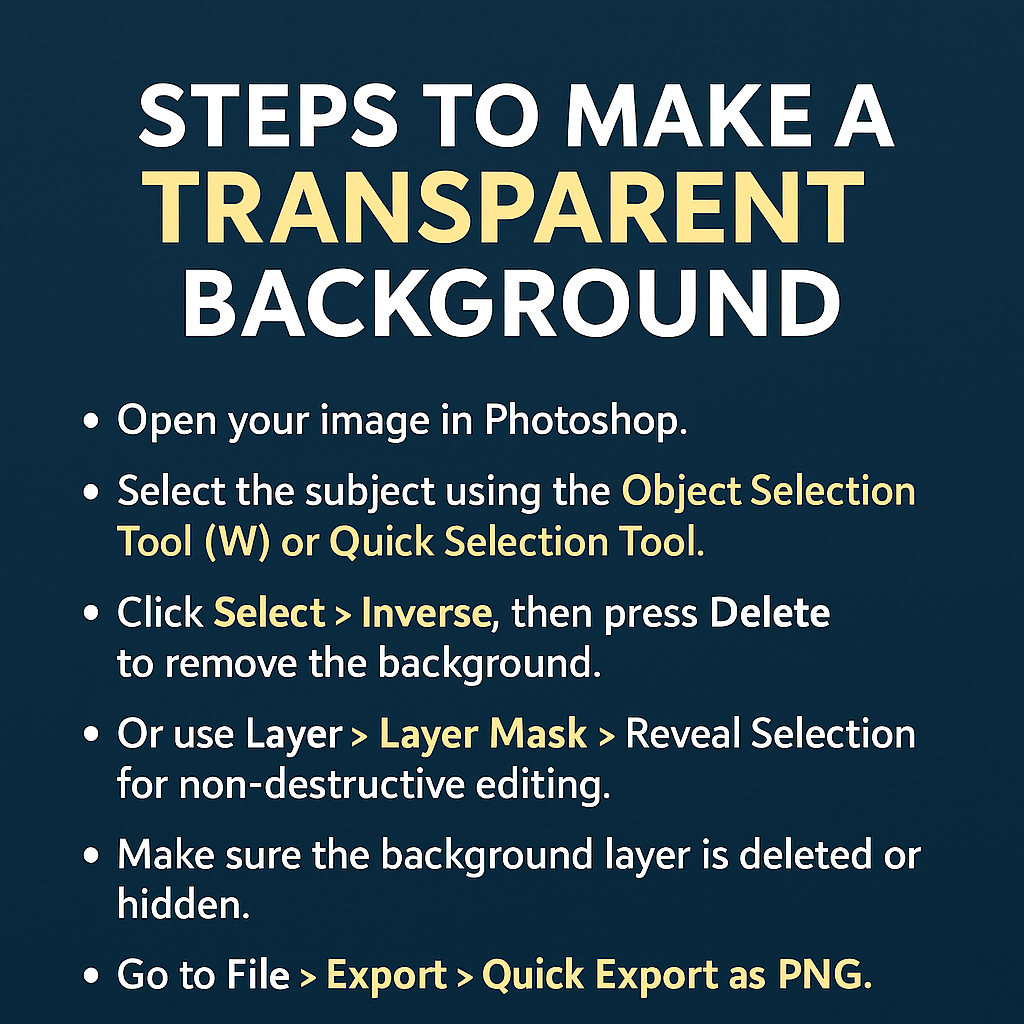
✅ The PNG file will have a transparent background!
💡 Pro Tips:
- For logos, use the Magic Wand Tool (W) on white backgrounds.
- Always check for extra pixels around edges by zooming in.
- Avoid saving as JPG — it doesn’t support transparency.
📣 Want to create professional cutouts and overlays?
Join our Photoshop Training Program at Akshar Graphics and Technology – Learn photo editing, branding, and advanced transparency techniques!