
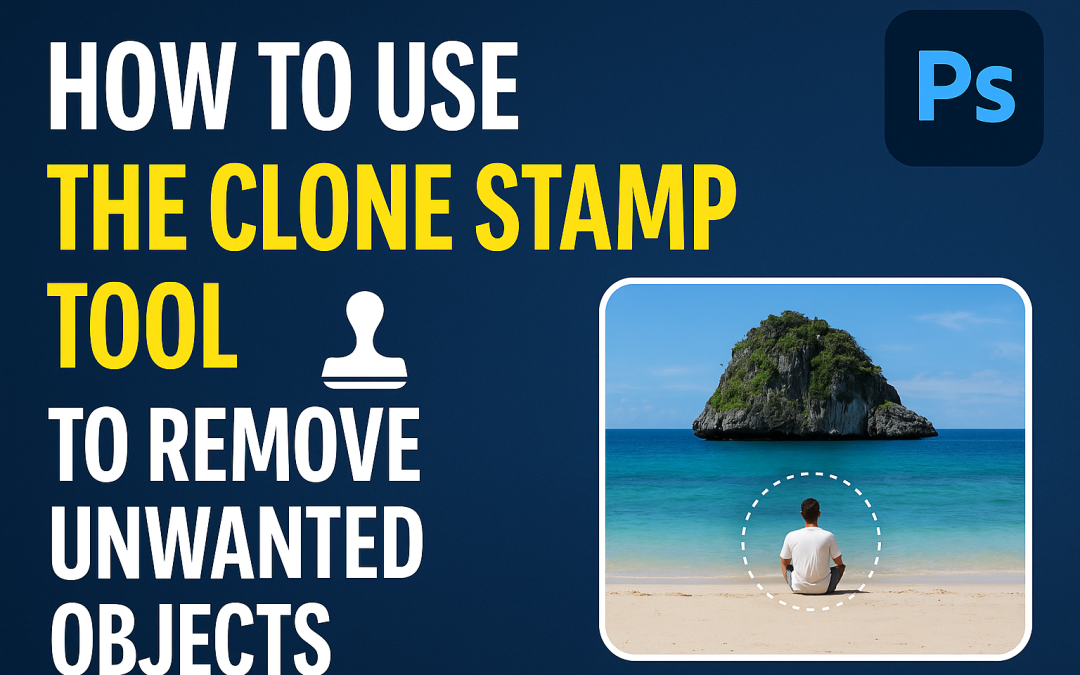
🧠 What is the Clone Stamp Tool?
The Clone Stamp Tool (S) in Photoshop allows you to copy pixels from one part of an image and paint them over another. It’s perfect for removing dust, power lines, blemishes, or any unwanted object.
🛠️ Steps to Use the Clone Stamp Tool:
- Open your image in Photoshop.
- Select the Clone Stamp Tool from the left toolbar or press S.
- Hold Alt (Option on Mac) and click the area you want to copy (source).
- Release Alt and brush over the area you want to cover (target).
- Adjust brush size and hardness from the top menu for smooth blending.
- Repeat from different source areas if needed for a natural result.
💡 Pro Tip:
Use a soft round brush with low opacity for skin touch-ups and fine textures.
✅ When to Use:
- Removing power lines from landscapes
- Erasing unwanted people or objects from photos
- Cleaning up blemishes or wrinkles in portraits
📁 Recommended Export Format:
Once done, export your image as JPG or PNG depending on its use.