
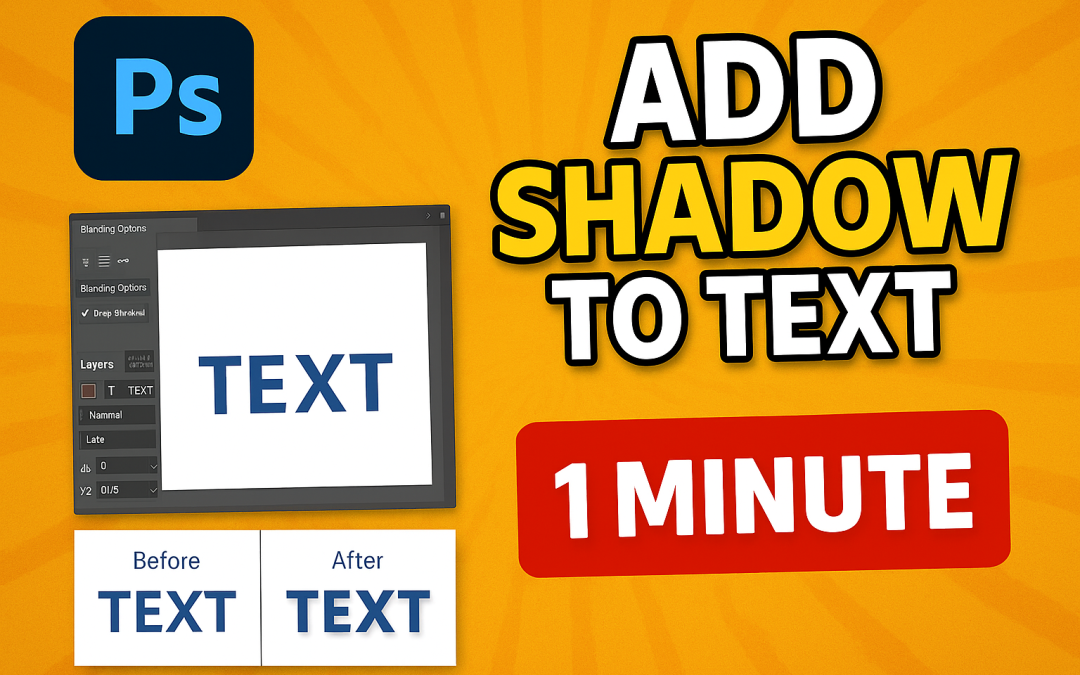
🎨 Photoshop Quick Tip #3: How to Add Shadow to Text Like a Pro
Want your text to stand out in posters, thumbnails, or ads? A clean, realistic shadow adds instant depth and drama. Here’s how to do it in less than a minute.
🧠 Steps to Add Shadow to Text:
-
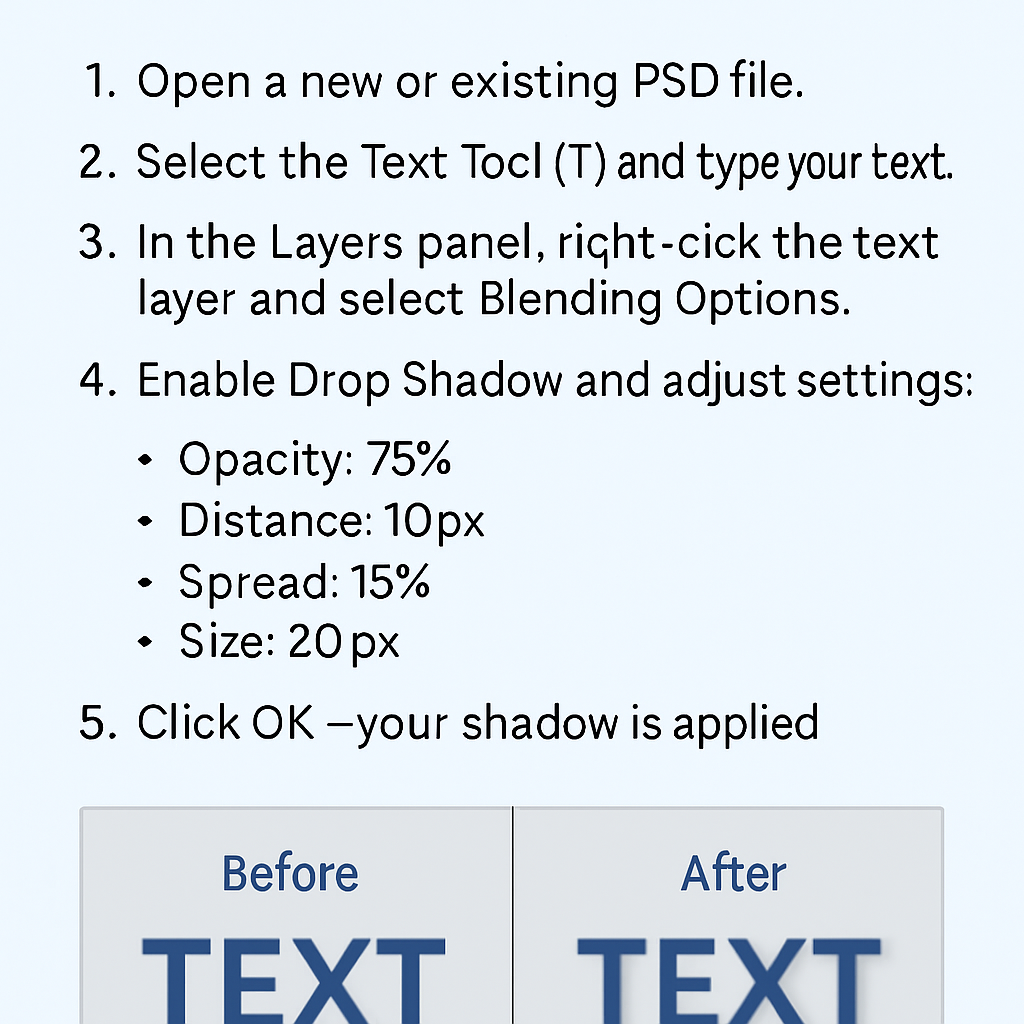
Open a new or existing PSD file.
-
Select the Text Tool (T) and type your text.
-
In the Layers panel, right-click the text layer and select Blending Options.
-
Enable Drop Shadow and adjust the settings:
-
Opacity: 75%
-
Distance: 10px
-
Spread: 15%
-
Size: 20px
-
-
Click OK – your shadow is applied!
✅ Pro Tips:
-
Use multiple shadows for glowing or neon effects.
-
For more control, right-click > Convert to Smart Object, then apply Filter > Blur > Gaussian Blur for soft custom shadows.
📣 Want to master text effects and design like a pro?
Join our Photoshop Training Course at Akshar Graphics and Technology – from beginner to advanced level, offline and online!